
To Do List With Schedule
Zindash is my list, notes, and schedule app. Learn more at zindash.com
I’ve always felt that a to do list by itself only provides half of the overall picture. I create many lists, but without a plan for actually accomplishing those tasks, it’s kind of meaningless. The goal for Zindash has always been to provide a to do list along with a schedule, so I can not only record everything I need to accomplish, but so I can also develop a plan to actually get it done.
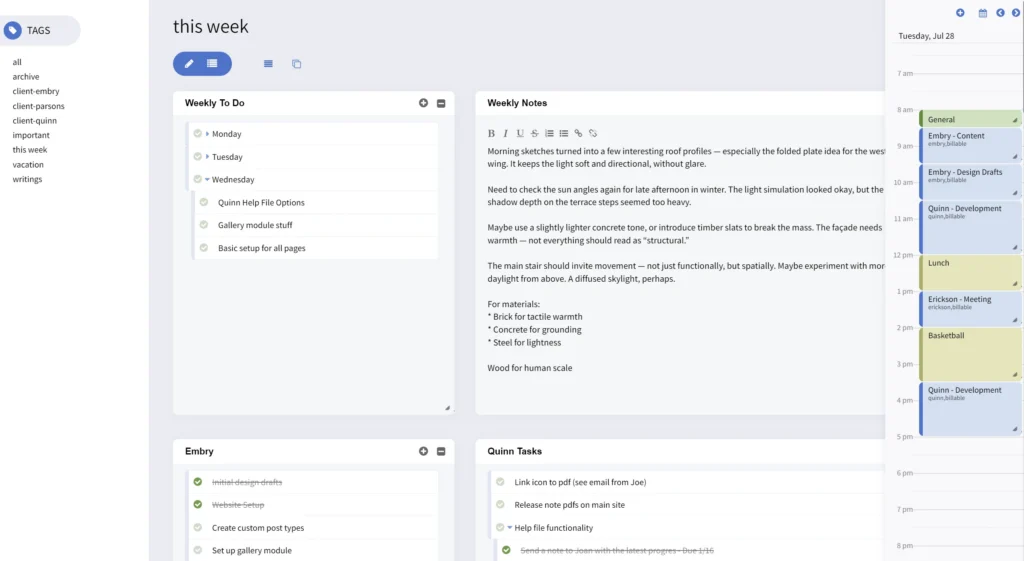
While todo lists have been a part of Zindash for quite some time, daily schedule functionality is a relatively new feature, and you can expect quite a few improvements and updates in the near future. To start using the daily schedule functionality, just make sure it is open and visible by clicking on the “Daily Schedule” tab along the right edge of the screen. The schedule will default to the current day, but you can navigate to different days using the arrow icons, or the calendar icon at the top of the schedule.
List and Schedule Features
The list and schedule features both have numerous features to keep you focused and working at your highest level:
List Features
-
Nested List Items
Group items under one another to add a level of hierarchy to your lists.
-
Highlighted List Items
Choose a background color to give an item emphasis or meaning.
-
Bold Formatting on List Items
Bold the fonts on specific list items, to give those items additional visual weight.
-
List Item Summary and Notes
Easily add a brief summary or notes for each list item.
-
Move Items from List to List
Zindash supports dragging list items from one list to another.
-
List Item Sync from List to List
Holding shift while dragging from list to list will create a synced item. Changes to one list item will automatically update the other.
-
Time Estimation
Add estimated times to child-tasks and the parent task will automatically display a total for all child-tasks.
Schedule Features
-
Easy Event Addition
Easy click and drag to create or adjust event times.
-
Coloring
Easily change the event tile background colors to highlight events or add additional meaning.
-
Event Tagging
Tag any event for easier reporting.
-
Billing Rates by Tag
Adding billing rates to tags to easily see the earnings or the amount a project needs to bill for.
-
Reporting Tools
Easily see how much time has been spent on specific projects or clients.
-
Exporting Schedule Data
Easily export data as a csv or pdf.
Using the Daily Schedule
The schedule pane will always be visible (as long as you have opened the tab) as you navigate from tag to tag. This can be helpful if you have multiple lists in different tag groupings (of course you can always see all of your separate lists in a single view if you also include a common tag — just a bit of a pro tip!). To create a new event, such as a block of working time, a meeting, or any other block of time that you would like to denote, just click and drag the mouse to create an event for the duration needed. The schedule functionality snaps to half-hour increments, but you can change the actual times to whatever is need once you start editing the event. Once you release the mouse button after dragging, Zindash will open a popup so you can add event details:

- Event Times – Zindash will add in the times based on your click-and-drag, but you can edit the actual times using the “When” text boxes.
- Title – You can provide a title for your event. This will be visible on the schedule.
- Notes – You can add notes to give context to your events. These don’t appear on the schedule pane — to view the notes you’ll need to click on the event to view (or edit) your notes.
- Tags – You can assign tags to events (and multiple tags separated by commas) in the ‘tags” text box. Once you have added tags to events, you can click on the tags to see a full listing of events that share that tag. This can be very helpful to see how long you’ve spent on a specific project or to generate a listing of billable time for a client.
- Color – You can assign a color to an event by clicking on one of the colored squares in the “color” section. The events tile will now have a background color applied. I often use colors to help me clearly see how I spend my days (I use blue for billable time, green for general work time, maroon for breaks or play time, etc…)
Once you has added in all of the information needed for your event, click the “create event” button to add it. To edit the event again, just click on the event tile. You can also click-and- drag event tiles around the schedule pane to move them to different times.
See What You’ve Spent Time On
The tag detail view makes it easy to see a full listing of time spent, based on the tags you give each event. You can even supply an hourly rate to tags, which provides an easy way to see how much you’ve earned over a given time period. I’ll usually give a rate to each of my clients, tag an event with the relevant client tag, as well as “billable” tag. Clicking on the “billable” tag in the edit event window will pull up all of my work, and give me a total earned, based on each client’s rate.
Learn More
You can learn more about both lists and the schedule on the main Zindash website:
Lists
Schedule
Planning Your Day
I usually like to plan my days by making sure my to do list is visible, and then dropping some event tiles onto my schedule related to those items. I also like to track other items on my schedule, like breaks and workouts. My schedule usually changes as my day progresses, which isn’t an issue, I just update my schedule as I go.
The ability to see both my to do list and my schedule in one view is an incredibly helpful feature that massively helps me to stay focused during the day and improves my overall productivity. It’s also nice to see my day come together, as my schedule solidifies as the day progresses, which also helps to give a nice feeling of accomplishment.